PDF & Export • May 4, 2026
Written and edited by Anwar Fakhri
Anwar Fakhri founded and maintains HandwritingTool, and writes and edits its practical guides about handwriting conversion, page layout, printable documents, and responsible writing workflows.
Updated August 29, 2026. Each guide is reviewed for clarity, practical usefulness, and responsible page-creation workflows.
How to Extract PDF Text for a Handwritten-Style Page
This workflow starts with an existing source PDF: upload a text-based file, extract its selectable text, edit the recovered wording, and generate new handwritten-style pages. It is different from creating a new handwritten PDF from text you already have.
HandwritingTool accepts text-based PDF uploads in its PDF to handwriting converter. The file is processed in the browser and its selectable text is placed in an editable text field. The importer does not run optical character recognition (OCR) or preserve the source PDF's design.
If you already have clean typed text and only need to create a new PDF, skip this article and use the handwritten PDF export guide.
First Identify the Kind of PDF
PDFs that look similar on screen can store content differently.
| PDF type | Quick test | Required preparation | |---|---|---| | Text-based | You can select individual words | Upload it to the PDF tool, then clean the extracted text | | Scanned image | Dragging selects a page image, not words | Run OCR in a separate application, then proofread | | Mixed document | Some text selects, some does not | Copy selectable text and use OCR only where needed | | Complex layout | Text selects in an incorrect order | Rebuild the reading order manually |
This distinction matters before import. The converter extracts plain text in the PDF's stored reading order, but complex columns or unusual layouts may still need manual correction.
Extract Text from a Text-Based PDF
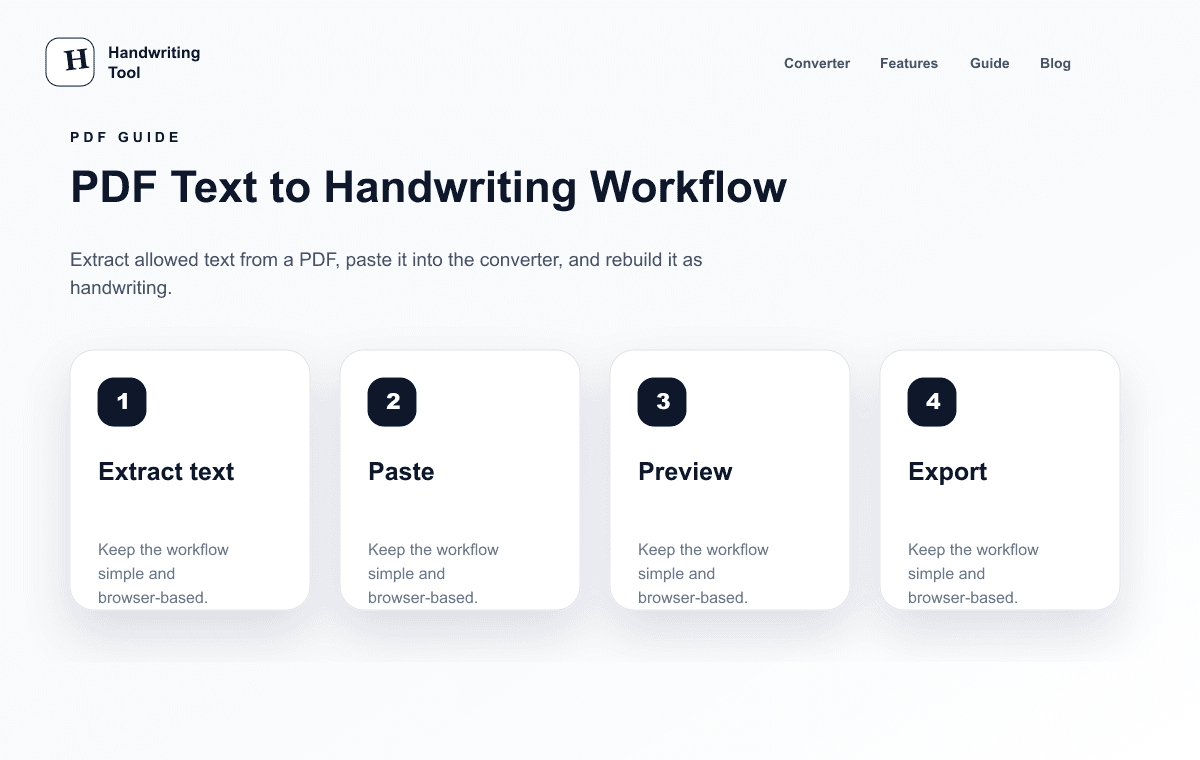
- Open the PDF to handwriting converter and choose a text-based PDF up to 15 MB.
- Check the detected page count.
- Enter
all, one page, a range such as1-3, or a list such as2,4,6. - Extract the selected pages and review the editable text.
- Remove repeated headers, footers, page numbers, and navigation labels.
- Rejoin sentences split by artificial line endings and compare important wording with the source.
The file and extracted text are processed locally in the browser. For a large file, use a smaller page range; extraction can also be cancelled. The tool limits extreme page counts and extracted-text size to reduce browser memory pressure.
Use OCR Only for a Scanned PDF
A scanned PDF may contain image data without searchable text. OCR software analyzes the image and creates selectable text. Adobe's official guide explains that Acrobat can add a searchable text layer to a scan, while Google Drive and Microsoft OneNote also document text-recognition workflows:
- Adobe Acrobat: recognize text in scanned PDFs
- Google Drive: convert PDF and photo files to text
- Microsoft OneNote: copy text from pictures and file printouts
OCR output is an estimate. Review names, dates, punctuation, numbers, and similar-looking characters such as 0/O, 1/l, and 5/S. Adobe and Microsoft both advise checking recognized text after extraction.
Do not upload confidential or sensitive documents to an OCR provider without reviewing that provider's privacy terms and your authority to process the file.
Clean the Extracted Text
PDF extraction commonly introduces errors that become more visible after page rendering.
Repair reading order
Multi-column layouts may copy the left and right columns in an unexpected sequence. Tables can mix headings and cells. Reconstruct the intended order manually rather than sending a scrambled block to the converter.
Remove document furniture
Delete page numbers, repeated titles, running headers, footers, watermarks, and citation-navigation labels unless they belong in the new page.
Fix line breaks and hyphenation
Join lines that were wrapped only because of the original page width. Reconnect words split at the end of a line, but keep genuine hyphenated terms unchanged.
Simplify unsupported structure
HandwritingTool renders plain text. It does not reproduce tables, images, footnotes, equations, form fields, signatures, page geometry, or embedded fonts. Rewrite simple tables as labelled lines and handle diagrams separately.
Move the Verified Text into HandwritingTool
After cleanup:
- Keep the verified text in the editable field inside the PDF converter.
- Choose the paper size before adjusting spacing.
- Review every generated page, especially names, numbers, and page breaks.
- Export a test page first.
- Create a complete PDF only after the preview is correct.
The output is a newly rendered handwritten-style document. It is not a transformed copy of the original PDF and will not preserve its layout.
When This Workflow Is Not Suitable
Do not use this workflow when:
- the source is confidential and the required OCR service is not approved;
- you do not own the text or lack permission to reuse it;
- exact tables, equations, signatures, forms, citations, or page geometry must remain intact;
- the result could misrepresent authorship, identity, authorization, or a record;
- the applicable school, workplace, legal, or platform rules do not permit generated pages.
For acceptable-use boundaries, read the responsible-use guidance.
PDF Input vs PDF Output
These two guides now have separate purposes:
- This article: extracting and cleaning text from an existing PDF.
- PDF export guide: taking verified plain text, tuning the page, and exporting a new multi-page PDF.
HandwritingTool now provides browser-side upload and selectable-text extraction. OCR and original-layout conversion remain separate capabilities that it does not provide.
Frequently Asked Questions
Can I upload a PDF directly to HandwritingTool?
Yes, if it is a text-based PDF with selectable text. Scanned PDFs still require a separate OCR tool before the resulting text can be proofread and converted.
Can I convert only selected PDF pages?
Yes. After the page count appears, extract all pages, one page, a range such as 1-3, or a comma-separated list such as 2,4,6.
Will the original PDF layout be preserved?
No. The converter creates a new page using its own paper, margin, spacing, and handwriting settings.
Can OCR recognize every scanned PDF accurately?
No. Accuracy depends on scan quality, contrast, orientation, language, fonts, and layout. Always compare the extracted text with the source.
Can I reuse any text found in a PDF?
No. A readable or downloadable file is not automatically free to reuse. Use your own text, licensed material, public-domain content, or content you have permission to process.
Use the Converter Responsibly
HandwritingTool is best for readable notes, drafts, worksheets, examples, journal pages, printable resources, and document previews. Review your output carefully before printing or sharing it.