Paper & Layout • June 13, 2026
Written by Anwar Fakhri
Anwar Fakhri founded and maintains HandwritingTool, and writes and edits its practical guides about handwriting conversion, page layout, printable documents, and responsible writing workflows.
Updated August 29, 2026. Each guide is reviewed for clarity, practical usefulness, and responsible page-creation workflows.
Text to Handwriting A4 Size: Best Settings for Printable Pages
Text to handwriting A4 size pages are useful when you want typed content to become a clean, printable handwritten-style page. A4 is one of the most common paper sizes for home printing, office printing, notebooks, study pages, personal notes, drafts, letters, and printable resources.
The important detail is that A4 output is not only about choosing a page size. A good A4 handwritten page also needs the right margins, font size, line spacing, paper style, ink color, and export format. If one setting is too large or too tight, the page can look crowded, oversized, or difficult to print.
This guide explains how to create better A4 handwriting pages online with HandwritingTool, how to choose the right settings, and how to export the result as a PDF, PNG, or JPG.
What Does Text to Handwriting A4 Size Mean?
Text to handwriting A4 size means converting typed text into handwriting-style output on an A4 page layout. The page is designed around A4 proportions instead of a random canvas size, so the result is easier to preview, download, print, or save.
A4 paper is 210 × 297 mm. HandwritingTool preserves that page ratio in the preview and writes those physical dimensions explicitly into exported A4 PDFs. A PDF reader and printer therefore identify the page as A4 rather than treating it as an arbitrary pixel-sized image.
An A4 handwriting page usually includes:
- A tall printable page shape
- Left and right margins
- Top and bottom spacing
- Lined, blank, or graph paper
- Blue, black, or dark gray ink
- A readable handwriting style
- Controlled font size and line spacing
- PDF, PNG, or JPG export
If you are new to the full workflow, start with the how to convert text to handwriting guide. This article focuses specifically on A4 page setup.
Why A4 Size Matters
A4 size matters because the page controls how the handwriting feels. The same text can look polished on one page size and awkward on another.
When A4 is set correctly, the output has a natural vertical flow. Lines have enough room, paragraphs do not feel cramped, and the page is easier to print without unwanted scaling. This is especially useful when the final result needs to look like a complete page rather than a small handwriting preview.
A4 size helps with:
- Printable handwritten-style notes
- Personal letters and drafts
- Notebook-style pages
- Planning pages
- Journal pages
- Study summaries
- Reading notes
- Creative writing pages
- Simple printable resources
The page size also affects export quality. A properly sized A4 PDF is easier to print than an image that must be manually resized later.
A4 vs Letter Size
A4 and Letter are close, but they are not the same.
A4 is common in many countries and has a tall, narrow feel. Letter size is common in the United States and is slightly wider and shorter. If you choose the wrong size, the page may still work, but printing can require scaling or cropping.
Use A4 when:
- Your printer or document setup uses A4
- You want a taller notebook-style page
- You are creating general printable pages
- You want international paper compatibility
Use Letter when:
- Your printer defaults to US Letter
- The page will be printed in the United States
- You want slightly wider line length
If you are not sure, check your printer's paper tray or print settings before exporting. The safest choice is to match the page size in HandwritingTool with the paper size selected in your printer dialog.
Best A4 Settings for Handwriting Pages
The best A4 settings depend on the type of page you are creating, but the goal is usually the same: readable handwriting with enough white space.
For a clean A4 handwritten page, start with these settings:
- Page size: A4
- Paper type: Lined paper for notes, blank paper for letters, graph paper for structured pages
- Font size: Medium
- Line spacing: Normal to slightly open
- Word spacing: Normal
- Left margin: Comfortable, not too narrow
- Right margin: Balanced
- Top margin: Enough space before the first line
- Ink color: Blue or black
- Export: PDF for printing, PNG or JPG for image use
Do not try to fit too much text on one page. A4 gives you space, but handwriting-style text needs more breathing room than typed text. If the page looks crowded, reduce the paragraph length or allow the content to continue onto another page.
Choose the Right Paper Type
Paper type changes the personality of the page. A4 is only the page size; the paper style decides how the writing feels.
Lined Paper
Lined paper is best for normal writing. It works well for notes, summaries, paragraphs, lists, and everyday handwritten-style pages. The lines guide the eye and make the output feel organized.
Use lined paper when readability is the priority. If your text has several paragraphs, lined paper is usually the safest choice.
For more detail, read the text to handwriting on lined paper guide.
Blank Paper
Blank paper gives the cleanest look. It is better for letters, short notes, creative writing, title pages, printable quote pages, and simple document previews.
Blank paper needs stronger spacing control because there are no lines to guide the layout. If the font is too large or the margins are too narrow, the page can look unbalanced.
Graph Paper
Graph paper is useful for structured pages. It works well when the page includes numbers, formulas, tables, lists, lab-style notes, or visual planning.
Graph paper can look busy for normal paragraphs, so use it only when the grid helps the content.
For a dedicated workflow, see the graph paper handwriting generator guide.
How to Create Text to Handwriting in A4 Size
You can create A4 handwriting pages directly in your browser with HandwritingTool.
Step 1: Prepare Clean Text
Start with clean text. Remove repeated spaces, fix typos, and split long paragraphs before pasting. A4 pages look better when the text has natural breaks.
Before converting, check:
- Are the paragraphs too long?
- Are headings needed?
- Are there extra blank lines?
- Is the text final enough to export?
- Would a reader understand the page quickly?
The cleaner the source text, the cleaner the handwritten page.
Step 2: Open the Converter
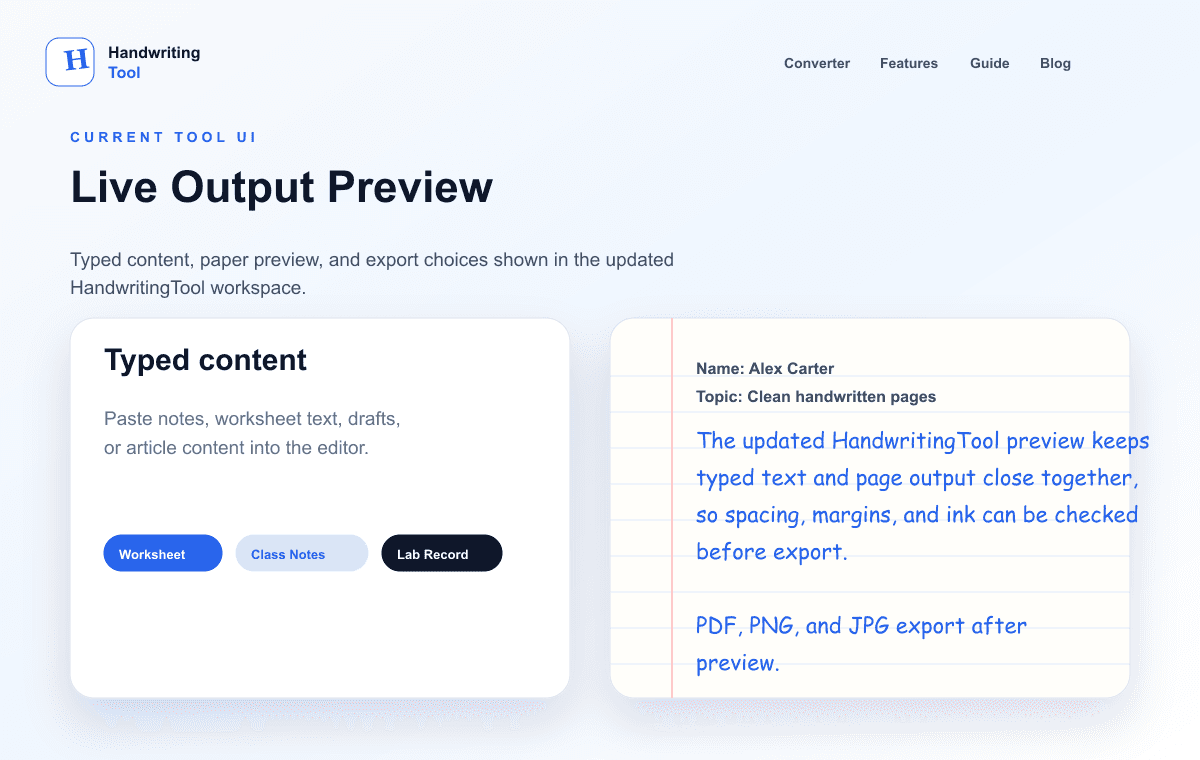
Open the HandwritingTool converter and paste your text into the editor. The tool shows a live preview, so you can adjust the page before downloading.
The main converter opens with A4 selected by default, so this CTA does not create a query-parameter URL or a competing A4 page.
Do not export immediately. First check the preview for line breaks, margins, page count, and readability.
Step 3: Select A4 Page Size
Choose A4 from the page size options. This sets the page to an A4-style layout and helps the exported file match a real printable page.
If your printer uses another paper size, choose that size instead. Matching the digital page to the printer page reduces scaling problems later.
Step 4: Pick a Paper Type
Choose lined, blank, or graph paper depending on your content.
Use lined paper for paragraphs and notes. Use blank paper for clean letters and short writing. Use graph paper for structured content.
If the first preview feels too busy, switch paper type and compare. A simple paper change can make the page look much more natural.
Step 5: Adjust Font Size
Font size is one of the most important A4 settings. If the font is too large, the page fills too quickly. If it is too small, the handwriting becomes hard to read.
For most A4 pages, a medium font size works best. It gives the page a natural handwritten look while keeping the text readable.
Increase font size when:
- The page has only a short message
- The handwriting looks too small
- The output is for display or preview
Decrease font size when:
- The page feels crowded
- Lines wrap too often
- The text needs better page flow
Margins Make the Page Look Real
Margins are easy to ignore, but they make a major difference. Real handwritten pages usually do not start at the extreme edge of the paper.
For A4 pages, keep the left margin comfortable and the right margin balanced. The top margin should give the first line enough space. The bottom margin should not feel squeezed.
Good margins help the page look:
- More realistic
- Easier to read
- Better balanced
- More print-friendly
- Less crowded
If your page looks strange but the font is readable, check the margins next. A small margin adjustment often fixes the whole layout.
Best Line Spacing for A4 Handwriting
Line spacing controls how much vertical room appears between lines. It is especially important on A4 because the page is tall.
If line spacing is too tight, the handwriting looks compressed. If it is too wide, the page feels empty and the content spreads across too many pages.
For most A4 pages, use normal or slightly open line spacing. This gives the handwriting room without wasting space.
Use more line spacing when:
- The handwriting style is tall
- The letters overlap visually
- The page is meant to be easy to read
Use less line spacing when:
- The text is short
- The handwriting style is compact
- The page has too much empty space
Always check the preview after changing line spacing because it can affect page count.
Blue Ink vs Black Ink on A4 Pages
Ink color affects how the page feels.
Blue ink often looks like everyday handwriting. It works well for notes, journal-style pages, and casual writing. Black ink feels cleaner and more formal. Dark gray can look softer than black while still staying readable.
For A4 printable pages:
- Use blue ink for a natural notebook feel
- Use black ink for clean documents and formal drafts
- Use dark gray for softer, lighter output
Avoid very light colors for printable pages. They may look fine on screen but print poorly.
PDF vs PNG vs JPG for A4 Export
The best export format depends on how you plan to use the page.
PDF is the best choice for printing. HandwritingTool exports each A4 PDF page at exactly 210 × 297 mm, keeps multiple handwriting pages together, and avoids asking the printer to infer a physical size from pixels alone.
Use PDF when:
- You want to print the page
- You have multiple pages
- You need stable layout
- You want a document-style file
Read the text to handwriting PDF generator guide for more export tips.
PNG
PNG is best when you need a clean image. It keeps sharp details and works well for previews, design use, and image-based workflows.
Use PNG when:
- You want a high-quality image
- You need clear handwriting edges
- The page will be inserted into another document or design
JPG
JPG is useful when you need a smaller image file. It is not always as sharp as PNG, but it is convenient for quick sharing and lightweight storage.
Use JPG when:
- File size matters
- The page is only for casual image use
- You do not need maximum sharpness
For most A4 printable workflows, start with PDF. Use PNG or JPG when you specifically need image files.
Printing Tips for A4 Handwriting Pages
After exporting, the printer settings still matter. Even a well-designed A4 page can print incorrectly if the print dialog changes the scale.
Before printing:
- Select A4 paper in the printer settings
- Use portrait orientation
- Avoid unwanted fit-to-page scaling when possible
- Check the preview before printing
- Use good quality print mode for clearer handwriting
- Make sure the printer tray contains A4 paper
If the page looks too close to the edges in print preview, go back to the tool and increase margins before exporting again.
Common A4 Mistakes to Avoid
Small layout mistakes can make an A4 handwriting page look less polished.
Avoid these common problems:
- Using a font size that is too large
- Keeping margins too narrow
- Exporting before checking the preview
- Choosing the wrong paper size for your printer
- Using very long paragraphs
- Using graph paper for normal writing
- Printing an image file without checking scale
- Using light ink that does not print clearly
The best habit is simple: preview first, then export. A short preview check saves time and paper.
Best A4 Settings by Use Case
Different pages need different settings. Use these as starting points.
For notes:
- Page size: A4
- Paper: Lined
- Ink: Blue or black
- Font size: Medium
- Line spacing: Normal
- Export: PDF
For letters:
- Page size: A4
- Paper: Blank
- Ink: Black or dark gray
- Font size: Medium to slightly large
- Line spacing: Slightly open
- Export: PDF or PNG
For journal pages:
- Page size: A4
- Paper: Lined or blank
- Ink: Blue or dark gray
- Font size: Medium
- Line spacing: Slightly open
- Export: PDF
For structured pages:
- Page size: A4
- Paper: Graph
- Ink: Black
- Font size: Medium to small
- Line spacing: Normal
- Export: PDF or PNG
These are not fixed rules. They are starting points. The preview should always decide the final settings.
For practice worksheets that children write on themselves — rather than converted text — the handwriting worksheet generator prints guided tracing sheets at the same exact A4 dimensions.
FAQs
Can I convert text to handwriting in A4 size online?
Yes. You can paste typed text into HandwritingTool, choose A4 page size, adjust the paper style and spacing, preview the result, and export the page as PDF, PNG, or JPG.
Is A4 better than Letter for handwriting pages?
A4 is better if your printer or document workflow uses A4 paper. Letter is better if your printer is set up for US Letter. The best choice is the paper size you will actually print or share.
Which paper type is best for A4 handwriting?
Lined paper is best for normal notes and paragraphs. Blank paper is best for clean letters and simple writing. Graph paper is best for structured pages with numbers, tables, or visual layout.
Should I export A4 handwriting as PDF or image?
Use PDF for printing and multi-page documents. Use PNG when you need a sharp image. Use JPG when you want a smaller image file.
Why does my A4 handwriting page look crowded?
The most common reasons are large font size, narrow margins, tight line spacing, or paragraphs that are too long. Reduce the font size, increase margins, split paragraphs, and check the preview again.
Can I print the exported A4 page?
Yes. For best results, export as PDF, select A4 paper in your printer settings, use portrait orientation, and check the print preview before printing.
Final Thoughts
Text to handwriting A4 size works best when the page is treated like a real document, not just a styled text preview. Choose A4, pick the right paper type, keep margins comfortable, use readable spacing, and export in the format that matches your final use.
If you want a printable result, PDF is usually the best choice. If you need an image, PNG gives cleaner detail and JPG gives smaller files. The key is to preview the full page before downloading.
Start with the free HandwritingTool converter, choose A4 size, and adjust the page until the handwriting feels readable, balanced, and ready to print.
Use the Converter Responsibly
HandwritingTool is best for readable notes, drafts, worksheets, examples, journal pages, printable resources, and document previews. Review your output carefully before printing or sharing it.